ApplicationsDownloadsContact
All downloads
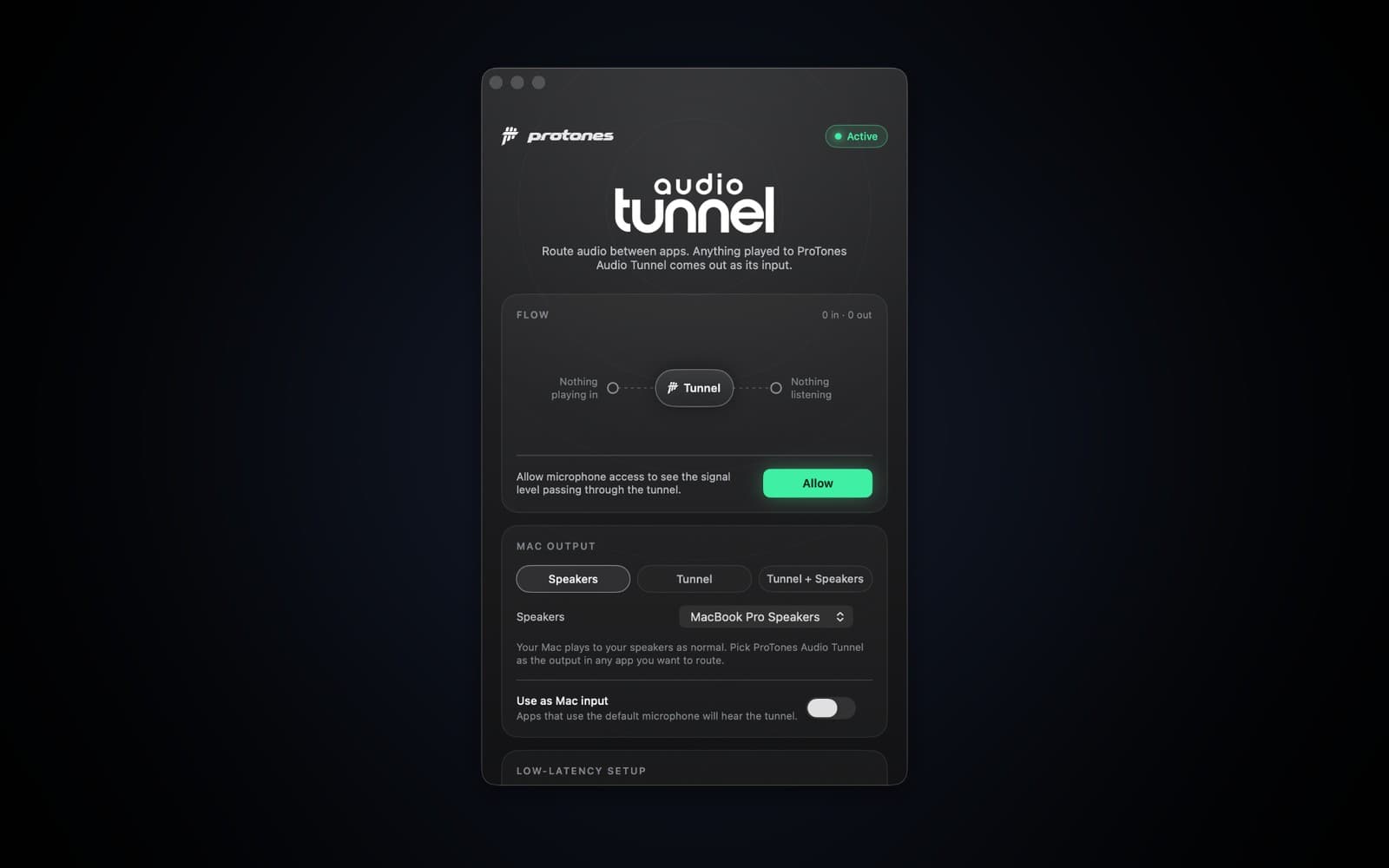
ProTones Audio Tunnel screenshot
v1.0.1Latest · Oct 24, 2026

ProTones Audio Tunnel

Route any app's audio into ProTones and your DAW, with no extra latency.

Download for macOS1.5 MBWindows · Coming soon
macOS:
macOS 13 or later · Apple silicon & Intel

What's new in v1.0.1

  • ImprovedMaintenance update.
Release history(1 earlier version)
  1. v1.0.0Oct 24, 2026

    Initial release

    • NewFirst release of ProTones Audio Tunnel.

Overview

What is ProTones Audio Tunnel?

ProTones Audio Tunnel is a free virtual audio device for macOS. Anything an app plays into ProTones Audio Tunnel comes straight back out as an input, so you can send audio from one app into another: a browser or music player into your DAW, ProTones EFX into a streaming or video-call app, or your whole Mac into a recording.

It installs as a standard audio device, so it shows up in every app's input and output menus. The companion app shows what's playing into the tunnel and what's listening, lets you choose whether your Mac's sound still reaches your speakers, and sets up a low-latency combined device with your audio interface in one click.

Features

What you can do with it

Route audio between any apps

Pick ProTones Audio Tunnel as the output in one app and the input in another. Works with DAWs, browsers, music players, streaming software and video-call apps.

Three Mac output modes

Speakers keeps your Mac playing normally. Tunnel sends all Mac audio into the tunnel. Tunnel + Speakers sends everything into the tunnel and lets you keep hearing it.

Use as Mac input

Make the tunnel your Mac's default input, so apps that use the default microphone hear it without any extra setup.

Low-latency setup

Combine your audio interface and the tunnel into one device, so apps don't add extra buffering to bridge two separate clocks.

See the signal flow

A live view shows which apps are sending into the tunnel and which are listening, with a level meter for the audio passing through.

Studio sample rates

Runs at 44.1, 48, 88.2, 96, 176.4 and 192 kHz to match your project and interface.

How it works

Get started in 4 steps

  1. 1

    Download the installer and open it to add ProTones Audio Tunnel to your Mac.

  2. 2

    Open the ProTones Audio Tunnel app and choose how your Mac's sound should play: Speakers, Tunnel, or Tunnel + Speakers.

  3. 3

    In the app whose sound you want to send, set the output to ProTones Audio Tunnel.

  4. 4

    In the app that should receive it, such as your DAW or streaming software, set the input to ProTones Audio Tunnel.

FAQ

Frequently asked questions

Is ProTones Audio Tunnel free?

Yes. ProTones Audio Tunnel is a free download for macOS.

Will I still hear my audio?

Yes. Choose Speakers to keep your Mac playing normally and route only the apps you pick, or Tunnel + Speakers to send all Mac audio into the tunnel while still hearing it.

Does it add latency?

The tunnel passes audio straight through. If you record from an audio interface while sending to the tunnel, use the low-latency setup to combine them into one device, and set your apps to a buffer size of 128 samples or lower.

Is there a Windows version?

Not yet. A Windows version is in development. Today ProTones Audio Tunnel runs on macOS 13 or later, on Apple silicon and Intel Macs.

How do I uninstall it?

Use the Uninstall option in the ProTones Audio Tunnel app. It removes the audio device and the app from your Mac, and your audio restarts briefly.

Follow Pro Tones on Facebook

ProTones Audio Tunnel updates, new releases, tips and tone demos.

Follow us